Firmware
Updates are free, forever.
Every update is free and optional. The Windows app installs them for you, so if your adapter already works the way you want, you never need this page.
Bought an adapter? Download here.
This is the software that runs on the adapter itself — not a driver, and not a program for your PC. Without an adapter, downloading it does nothing. Have a look at the adapter if you don’t have one yet.
This file is for the adapter only. Don't flash it to anything else.
0.9.3 needs a registered adapter
It only links a controller on an adapter that carries a registration. If yours has never run 0.9.3, email support before updating — registering is free and quick.
How to update
Two ways. The Windows app is the easy one; the by-hand route works no matter what is on the board.
With the Windows app
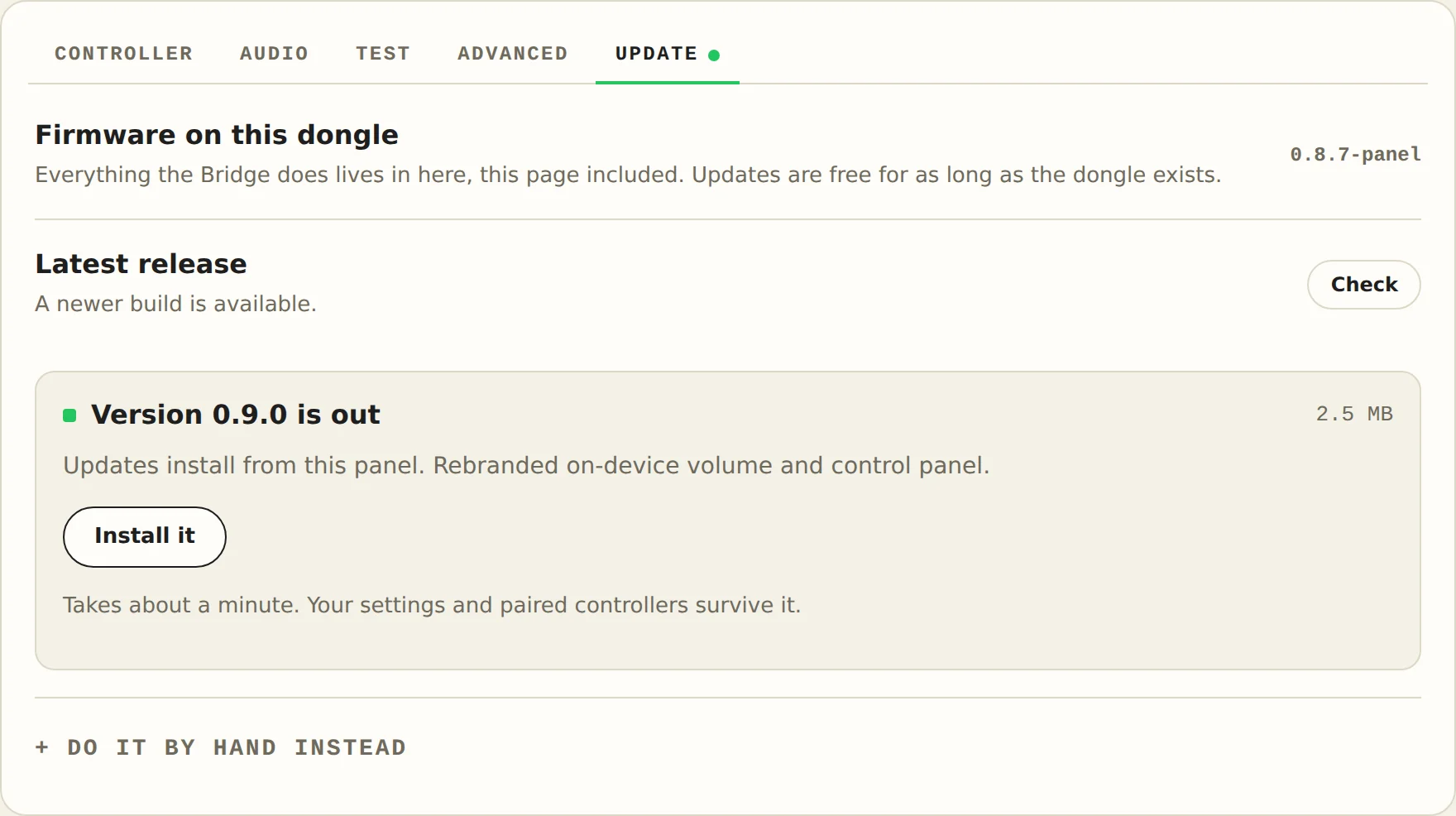
Turn your controller on so the adapter shows up, open the Blipfrog Panel app, and press the button on the Update tab. The app downloads, verifies and installs the firmware, then restarts the adapter. If an adapter stops showing up altogether, the app’s Dongle not showing up? card walks you through bringing it back.
Your settings and your paired controller survive an update.
By hand
The adapter uses the standard Raspberry Pi bootloader, so this is a drag-and-drop. It takes about thirty seconds and you cannot brick it — if a flash goes wrong, you just do it again.
- Download the
.uf2file above. - Unplug the adapter from your PC.
- Hold down the small BOOTSEL button on the board through the opening in the case, and while holding it, plug the adapter back in.
- Let go. A drive called
RP2350appears in File Explorer. - Drag the .uf2 onto that drive. The drive disappears on its own — that means it worked.
- Done. The adapter restarts on its own. If your controller doesn't reconnect, pair again with PS + Create.
If the RP2350 drive doesn't appear
You let go of BOOTSEL too early, or the USB cable you're using is charge-only. Try again holding the button until a second after the plug is seated, and use the cable that came in the box.
Release notes
v0.9.3 — panel fixes
- Light bar colors work from the panel, and Off stays off.
- The panel notices an adapter that's plugged in after it opened.
- Repair is one button: it reinstalls the firmware and forgets every paired controller.
- Updates are never installed on their own. The panel tells you; you press the button.
- Adapters carry a registration that this build checks. If the panel says yours isn't registered, contact support — it's a quick fix and nothing is damaged.
Earlier releases
- v0.9.0 — firmware updates from the panel, verified against a published checksum.
- v0.8.7 — the first control panel: connection status, pairing, rumble and trigger tests.
- v0.7.2 — pairing fixes. A controller that had been re-paired to a PS5 or another adapter could refuse to ever pair again; that's fixed, and scanning now continues until a controller is found.
If your adapter shipped before September 2026 and has ever refused to re-pair, updating fixes it.
The firmware builds on open-source work — credits and licenses are on the legal page.